
A booking on Mycare records the agreed details of care between an organiser and a care worker, including dates, times, and rates.
Where can I book a visit?
Once you’ve found the right person, you can book visits instantly. It’s easy to organise their visits online and keep track of their activities.
There are a few of places you can book visits from:
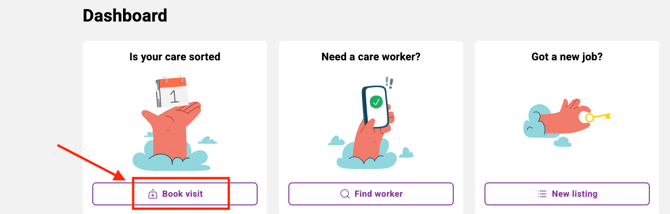
- From your dashboard. Select the option 'Book a visit' and then choose an existing Care Worker or Applicant that you wish to book.
- From your chat messages. Once you and a worker have sent at least one message each there will be a 'Book Visit' button on the chat which you may use.

- From your Visits tab. Select 'Visits' on your left hand menu and then 'Book Visit' in the top right corner. You may then choose an existing Care Worker or Applicant to book.

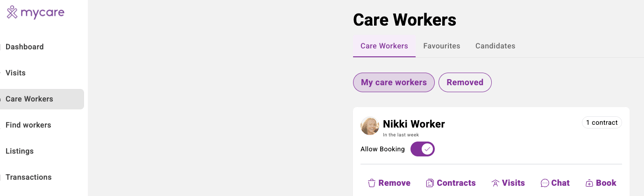
- From your Care Workers tab. Select 'Visits' on your left hand menu and then 'Book Visit' in the top right corner. You may then choose an existing Care Worker or Applicant to book.
How do I book a visit?
-
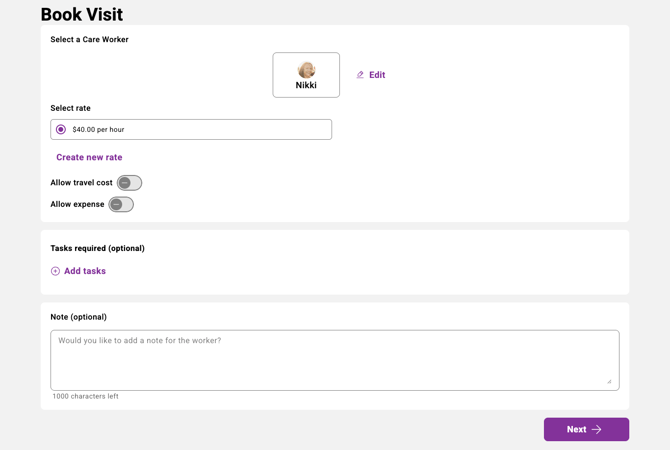
Select the worker. From the navigation above, there are many places to select the worker you wish to book. You may book a worker you have an existing contract with, a worker you have invited, or a fully vetted worker who you have exchanged messages with via chat. (Note you cannot book a worker without initiating some contact first).
- Select the rate. Use an existing rate or create a new rate (per hour or per visit). Mycare has minimum rates, to ensure our workers are earning the living wage.
- New rate: When adding a new rate (either for an existing worker, or setting up a worker for the first time) you will be prompted to read and digitally sign a contract. The worker will do the same, and this contract governs the agreement between the two of you.
-
(Optional) Add travel and expenses. You may add an allowance for a worker to claim travel costs (set maximum km per visit) or expenses (set maximum dollar amount).
-
Please note that you will be charged the maximum you set, however if your worker claims less than maximum the difference will remain in your account for future bookings.
- If the worker claims more than the maximum allowance, you will be asked to approve the extra amount. If accepted, you will be charged the extra at time of approval.
-
-
(Optional) Add visit details. You may optionally add required tasks and notes for the worker. This can be helpful if you are the organiser of care but you will not see the worker in person when they visit.
Adding expenses is unavailable for those using Government Funding as they are costs related to leisure, recreation and personal or family costs. Please refer to your IF host or Disability Support Services
-
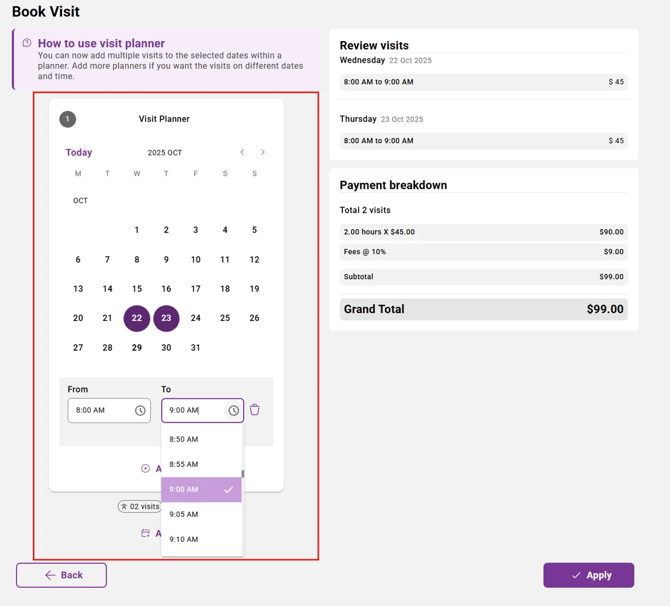
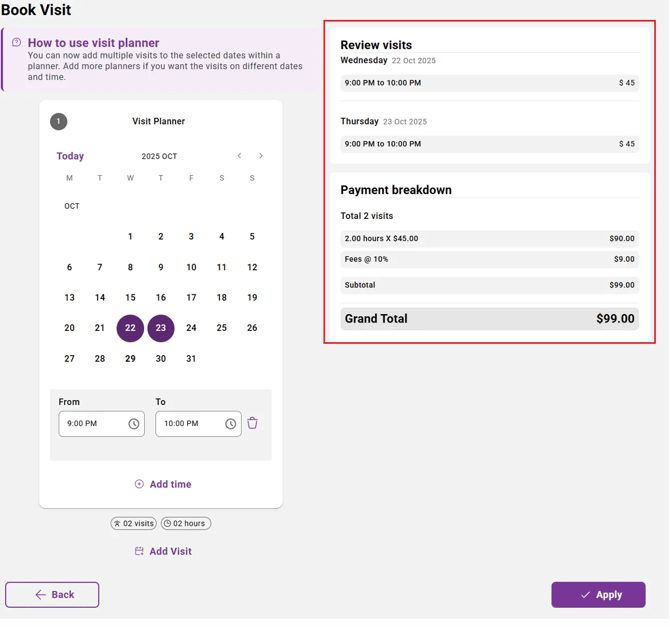
Schedule day and time of visit(s). Use the calendar to select the days and times of visit. All visits with the same days can be booked on the same Visit Planner. Select 'Add Time' if they are visiting multiple times in one day. For more visits with the same worker with a different day/time, select 'Add a Planner' to keep booking.
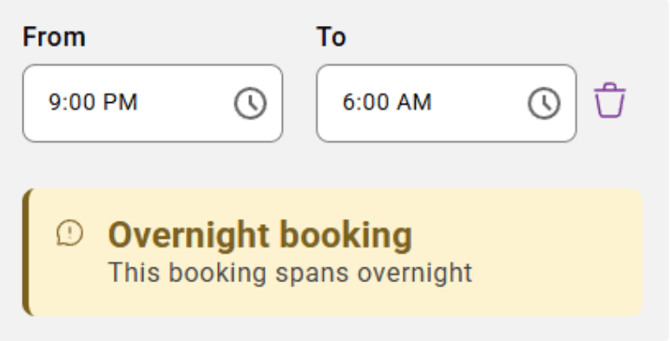
- For overnight bookings select the start and finish time as normal, you will see a warning message just to ensure that your booking was meant to span overnight (and not an error!)
-
Review and Confirm. Please review all information in the right-hand window (particularly visit days and times, and charges) to ensure it is correct.
- For clients on prepay, payment will be made (from your credit card or from funds held in your account) at the time of completing the booking. These funds will be held in your account. They are not paid to the worker until the visit has occurred and been approved for payment. Read more about approving payments here.